Print this page

How to configure Microsoft Outlook 2010 to Send & Receive Mail

If you've just started using Wild Planet as your email service provider, there are a few configuration changes you will need to make in your Microsoft Outlook before you can begin sending and receiving mail. Up to now, your Outlook has been configured to log into your previous email servers, but now you must give it the instructions it needs to log into ours.

There are quite a few versions of Microsoft Outlook, but the settings are the same for all of them. The only thing that is different is how you get to the Account Settings area. Below you will find instructions for Outlook 2010; we are currently working on instructions for Outlook 2000, 2003, 2007, and 2013.


1. Start the Microsoft Outlook program.

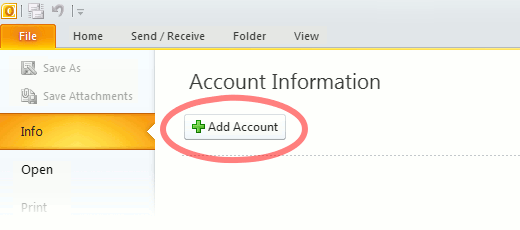
Use the Start menu to start Outlook 2010. If you’ve never used Outlook before, it will prompt you to create a new account. In that case, skip ahead to step 2. If you’ve previously used Outlook and it doesn’t prompt you, click the File tab, then the Add Account button (see image below).

Or, if you have been using Outlook previously and simply need to reconfigure it in order to use our email servers, then look for your existing account in the Account Settings window, and then click the CHANGE button. (because you will be CHANGING existing account settings). Skip to Step 4 below.
outlook2010 1

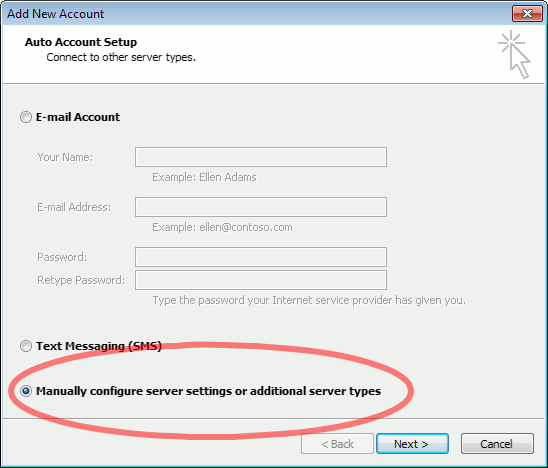
2. The “Auto Account Setup” screen appears.

When this window appears, leave the spaces empty, choose the Manually configure server settings or additional server types option, then click Next.
outlook2010 2

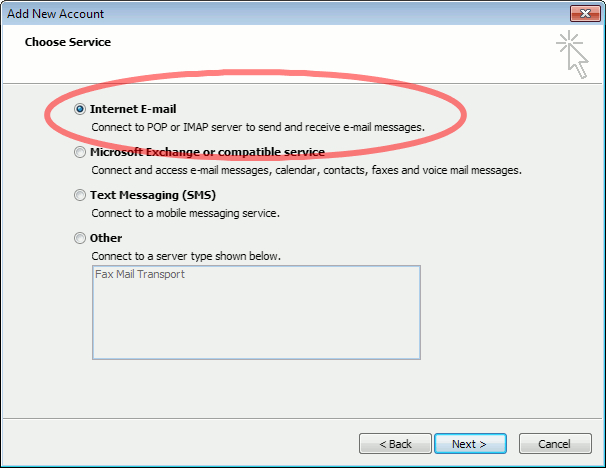
3. The “Choose Service” screen appears.

Choose Internet E-mail, then click Next.
Outlook 2010

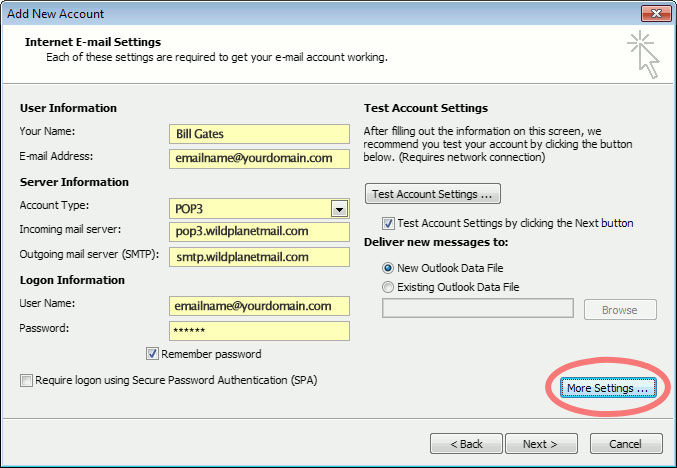
4. The “Internet E-mail Settings” screen appears.

This is the window where you’ll enter most of your account settings. You want the window to look like this:
Outlook 2010
  • “Your Name” is the name that other people will see when you send them e-mail. It should usually be your real name, such as Bill Gates or Joan of Arc.
  • Enter your “E-mail Address”. The address must be the e-mail address of the mailbox you created in your account management control panel.
  • For “Account Type”, choose POP3.
  • Enter pop3.wildplanetmail.com for the “Incoming mail server” and smtp.wildplanetmail.com for the “Outgoing mail server (SMTP)”.
  • Enter your (full) e-mail address again as the “User Name”. (The user name must be all lowercase).
  • Type your e-mail password into the “Password” box. This is the password you chose for this e-mail address when you created the mailbox in your account management control pane (unless we have created it for you). This password may be different from your master “My Account” password with our company.
  • Make sure that “Require logon using Secure Password Authentication (SPA)” is not checked.
  • Do not click “Test Account Settings” or “Next” yet; they will not work until you complete the next steps.

5. View “More Settings”.

Click the More Settings button. A new “Internet E-mail Settings” window appears.

6. Choose the “Outgoing Server” tab.

In the “Outgoing Server” tab, check My outgoing server (SMTP) requires authentication and make sure Use same settings as my incoming mail server is selected:
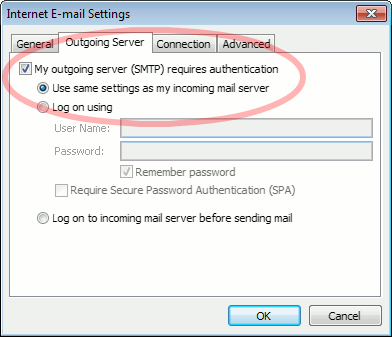
Outlook 2010 outgoing authentication


7. Close the “Internet E-mail Settings” window.

Click OK to close the “Internet E-mail Settings” window. The “Add New Account” screen will still be visible.

8. Test the settings.

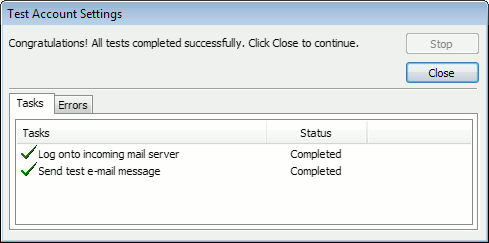
Click Next. Outlook will test the settings, then should tell you that “all tests completed successfully”:
outlook2010 10

If Outlook tells you a test failed, double-check to be sure you’ve entered the settings correctly.

9. Finish the wizard.

If the “Test Account Settings” window is still open, click Close to continue.

Click Finish to finish the wizard.

Outlook setup is complete

You’re finished! Try sending yourself a test e-mail message to make sure it works.

Read 1122485 times Last modified on %AM, %07 %246 %2015 %04:%Mar

About The Author

Super User

Lorem ipsum dolor sit amet, consectetur adipiscing elit, sed do eiusmod tempor incididunt ut labore et dolore magna aliqua. Ut enim ad minim veniam, quis nostrud exercitation ullamco laboris nisi ut aliquip ex ea commodo consequat. Duis aute irure dolor in reprehenderit in voluptate velit esse cillum dolore eu fugiat nulla pariatur.

183790 comments

  • kyrie irving shoes
    Comment Link kyrie irving shoes %PM, %30 %803 %2022 %18:%Mar

    A lot of thanks for all of your hard work on this web page. Gloria really loves going through investigation and it's really obvious why. My partner and i hear all relating to the compelling form you deliver insightful techniques on the website and as well as strongly encourage contribution from visitors on this point plus our simple princess is always understanding so much. Have fun with the remaining portion of the year. You are always conducting a glorious job.

  • supreme clothing
    Comment Link supreme clothing %PM, %30 %803 %2022 %18:%Mar

    I just wanted to write a quick word to express gratitude to you for these nice points you are showing on this website. My rather long internet lookup has at the end been honored with excellent suggestions to talk about with my pals. I 'd tell you that many of us site visitors actually are truly fortunate to live in a fantastic place with so many perfect professionals with beneficial tips. I feel somewhat privileged to have discovered your web page and look forward to plenty of more entertaining moments reading here. Thanks once again for a lot of things.

  • goyard
    Comment Link goyard %PM, %30 %803 %2022 %18:%Mar

    Thank you a lot for giving everyone remarkably splendid opportunity to check tips from this website. It's always so pleasurable and jam-packed with fun for me personally and my office acquaintances to visit your web site no less than 3 times in one week to read through the newest tips you have. And indeed, I am always astounded with all the impressive opinions served by you. Some 2 areas in this post are in reality the most suitable we've had.

  • jordan shoes
    Comment Link jordan shoes %PM, %30 %607 %2022 %13:%Mar

    I wanted to make a comment so as to appreciate you for some of the great tips and hints you are giving out on this site. My long internet research has at the end been compensated with reliable tips to exchange with my guests. I 'd state that that many of us website visitors actually are very much endowed to be in a wonderful network with so many awesome people with insightful methods. I feel really privileged to have discovered your weblog and look forward to so many more pleasurable times reading here. Thanks once more for all the details.

  • yeezy
    Comment Link yeezy %PM, %30 %607 %2022 %13:%Mar

    Thank you a lot for giving everyone an exceptionally remarkable chance to read from this web site. It's always very superb and as well , full of amusement for me personally and my office friends to search your site no less than 3 times weekly to see the latest tips you have got. Of course, we are always fascinated with your special solutions you serve. Selected 2 points in this post are in fact the most suitable I've had.

  • yeezy 350
    Comment Link yeezy 350 %PM, %30 %607 %2022 %13:%Mar

    Thanks a lot for providing individuals with an extraordinarily spectacular possiblity to read in detail from this website. It really is very pleasurable and as well , packed with a lot of fun for me personally and my office colleagues to visit your site really 3 times in a week to learn the new stuff you have got. And definitely, I am at all times happy with all the cool hints served by you. Some two areas on this page are undoubtedly the most beneficial I have ever had.

  • curry 7 shoes
    Comment Link curry 7 shoes %PM, %30 %607 %2022 %13:%Mar

    I'm also writing to let you be aware of what a useful discovery our daughter obtained going through your blog. She came to find a wide variety of details, with the inclusion of what it's like to have an ideal helping character to make many people without problems master a number of grueling issues. You really did more than our expectations. Thanks for providing these helpful, dependable, informative and in addition unique tips about the topic to Jane.

  • jordan retro
    Comment Link jordan retro %PM, %30 %607 %2022 %13:%Mar

    I and my buddies were found to be going through the best tips and hints located on your site while all of the sudden came up with an awful feeling I never expressed respect to the web site owner for those tips. These young boys ended up certainly excited to study them and already have simply been taking pleasure in them. Appreciate your simply being really considerate as well as for finding these kinds of exceptional tips most people are really needing to discover. Our sincere apologies for not expressing appreciation to earlier.

  • GIncaccashfy
    Comment Link GIncaccashfy %AM, %30 %478 %2022 %10:%Mar

    diazepam medication - diazepam over the counter uk diazepam buy

  • authentic jordans
    Comment Link authentic jordans %AM, %30 %470 %2022 %10:%Mar

    I truly wanted to write down a quick message so as to say thanks to you for all of the great recommendations you are placing on this site. My considerable internet research has finally been recognized with extremely good know-how to talk about with my great friends. I 'd mention that we site visitors are very fortunate to be in a great website with so many wonderful people with beneficial advice. I feel somewhat blessed to have discovered your entire website page and look forward to really more fabulous minutes reading here. Thanks again for everything.