Print this page

How to configure Microsoft Outlook 2010 to Send & Receive Mail

If you've just started using Wild Planet as your email service provider, there are a few configuration changes you will need to make in your Microsoft Outlook before you can begin sending and receiving mail. Up to now, your Outlook has been configured to log into your previous email servers, but now you must give it the instructions it needs to log into ours.

There are quite a few versions of Microsoft Outlook, but the settings are the same for all of them. The only thing that is different is how you get to the Account Settings area. Below you will find instructions for Outlook 2010; we are currently working on instructions for Outlook 2000, 2003, 2007, and 2013.


1. Start the Microsoft Outlook program.

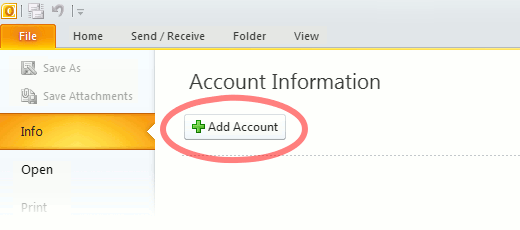
Use the Start menu to start Outlook 2010. If you’ve never used Outlook before, it will prompt you to create a new account. In that case, skip ahead to step 2. If you’ve previously used Outlook and it doesn’t prompt you, click the File tab, then the Add Account button (see image below).

Or, if you have been using Outlook previously and simply need to reconfigure it in order to use our email servers, then look for your existing account in the Account Settings window, and then click the CHANGE button. (because you will be CHANGING existing account settings). Skip to Step 4 below.
outlook2010 1

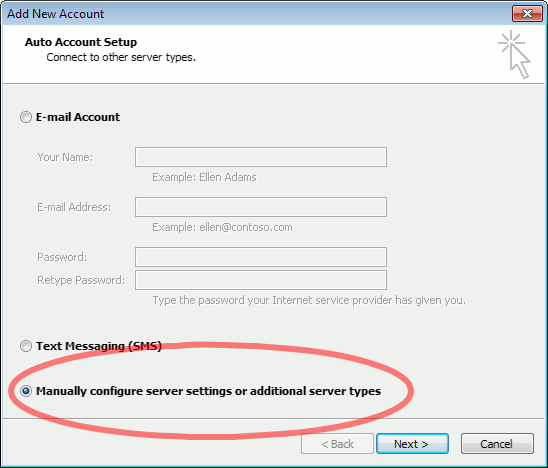
2. The “Auto Account Setup” screen appears.

When this window appears, leave the spaces empty, choose the Manually configure server settings or additional server types option, then click Next.
outlook2010 2

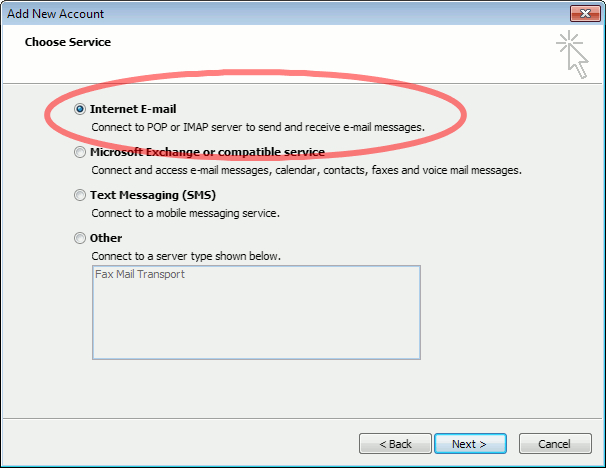
3. The “Choose Service” screen appears.

Choose Internet E-mail, then click Next.
Outlook 2010

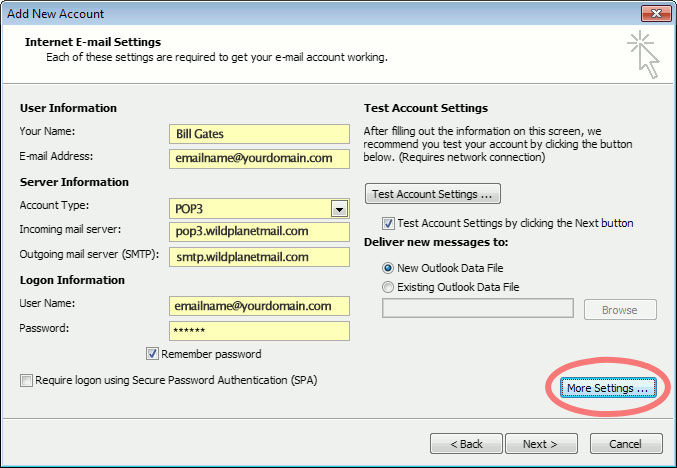
4. The “Internet E-mail Settings” screen appears.

This is the window where you’ll enter most of your account settings. You want the window to look like this:
Outlook 2010
  • “Your Name” is the name that other people will see when you send them e-mail. It should usually be your real name, such as Bill Gates or Joan of Arc.
  • Enter your “E-mail Address”. The address must be the e-mail address of the mailbox you created in your account management control panel.
  • For “Account Type”, choose POP3.
  • Enter pop3.wildplanetmail.com for the “Incoming mail server” and smtp.wildplanetmail.com for the “Outgoing mail server (SMTP)”.
  • Enter your (full) e-mail address again as the “User Name”. (The user name must be all lowercase).
  • Type your e-mail password into the “Password” box. This is the password you chose for this e-mail address when you created the mailbox in your account management control pane (unless we have created it for you). This password may be different from your master “My Account” password with our company.
  • Make sure that “Require logon using Secure Password Authentication (SPA)” is not checked.
  • Do not click “Test Account Settings” or “Next” yet; they will not work until you complete the next steps.

5. View “More Settings”.

Click the More Settings button. A new “Internet E-mail Settings” window appears.

6. Choose the “Outgoing Server” tab.

In the “Outgoing Server” tab, check My outgoing server (SMTP) requires authentication and make sure Use same settings as my incoming mail server is selected:
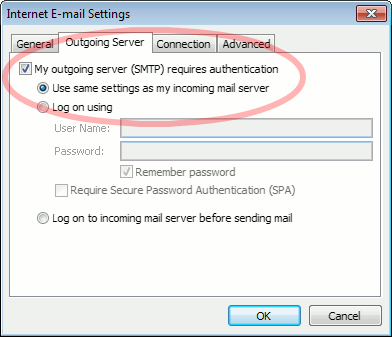
Outlook 2010 outgoing authentication


7. Close the “Internet E-mail Settings” window.

Click OK to close the “Internet E-mail Settings” window. The “Add New Account” screen will still be visible.

8. Test the settings.

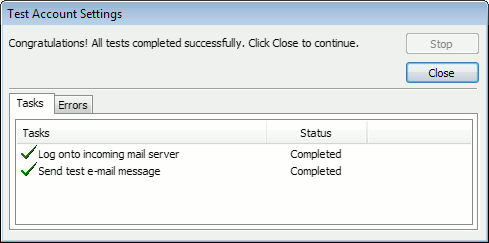
Click Next. Outlook will test the settings, then should tell you that “all tests completed successfully”:
outlook2010 10

If Outlook tells you a test failed, double-check to be sure you’ve entered the settings correctly.

9. Finish the wizard.

If the “Test Account Settings” window is still open, click Close to continue.

Click Finish to finish the wizard.

Outlook setup is complete

You’re finished! Try sending yourself a test e-mail message to make sure it works.

Read 1137820 times Last modified on %AM, %07 %246 %2015 %04:%Mar

About The Author

Super User

Lorem ipsum dolor sit amet, consectetur adipiscing elit, sed do eiusmod tempor incididunt ut labore et dolore magna aliqua. Ut enim ad minim veniam, quis nostrud exercitation ullamco laboris nisi ut aliquip ex ea commodo consequat. Duis aute irure dolor in reprehenderit in voluptate velit esse cillum dolore eu fugiat nulla pariatur.

184094 comments

  • kobe shoes
    Comment Link kobe shoes %PM, %13 %802 %2022 %18:%Apr

    I enjoy you because of each of your labor on this blog. Kim take interest in carrying out investigations and it's easy to understand why. All of us notice all about the dynamic manner you create great thoughts on this web site and even inspire contribution from other individuals about this area of interest and our favorite princess is really starting to learn so much. Take advantage of the remaining portion of the year. Your conducting a tremendous job.

  • curry 8
    Comment Link curry 8 %PM, %13 %801 %2022 %18:%Apr

    Thank you for every one of your hard work on this website. Betty really loves carrying out internet research and it's really obvious why. Almost all learn all of the powerful manner you offer good tips and tricks via your web blog and as well strongly encourage participation from some others on the topic and my child is without question being taught a great deal. Have fun with the remaining portion of the year. Your performing a terrific job.

  • air jordan
    Comment Link air jordan %PM, %13 %800 %2022 %18:%Apr

    I am also commenting to make you understand of the impressive encounter our child enjoyed browsing your webblog. She learned several pieces, with the inclusion of what it is like to possess an excellent coaching mindset to have other individuals quite simply learn about various problematic matters. You truly exceeded her expected results. Thank you for providing the powerful, dependable, edifying not to mention fun tips on the topic to Gloria.

  • hermes birkin
    Comment Link hermes birkin %PM, %13 %800 %2022 %18:%Apr

    I'm also writing to let you know what a incredible experience my friend's child encountered reading through your web site. She came to understand many issues, most notably how it is like to possess a very effective helping mindset to have a number of people without hassle fully understand various specialized topics. You really exceeded our own expected results. Thank you for presenting such practical, healthy, explanatory and as well as unique tips on the topic to Julie.

  • kobe 11
    Comment Link kobe 11 %PM, %13 %798 %2022 %18:%Apr

    Thanks so much for giving everyone an extraordinarily superb possiblity to read critical reviews from here. It really is so brilliant plus packed with a lot of fun for me personally and my office peers to search your web site at minimum three times in 7 days to see the newest guidance you have got. Of course, we are always fulfilled considering the exceptional ideas served by you. Certain 2 facts in this posting are certainly the most effective we have had.

  • jordan shoes
    Comment Link jordan shoes %PM, %13 %796 %2022 %18:%Apr

    I would like to show my passion for your kind-heartedness for those who absolutely need guidance on the subject matter. Your special dedication to passing the message around had been definitely powerful and have specifically allowed men and women just like me to reach their desired goals. Your amazing interesting help and advice implies this much a person like me and further more to my office workers. Best wishes; from all of us.

  • yeezy 380
    Comment Link yeezy 380 %PM, %13 %791 %2022 %17:%Apr

    A lot of thanks for all your hard work on this website. My niece really likes going through internet research and it is simple to grasp why. We all hear all about the powerful form you create worthwhile tips and hints on the web site and as well encourage participation from other people on the situation while our favorite child is without a doubt being taught so much. Enjoy the rest of the year. You're the one conducting a glorious job.

  • longchamp
    Comment Link longchamp %PM, %13 %790 %2022 %17:%Apr

    I'm writing to make you understand of the superb discovery our child obtained browsing your webblog. She came to understand lots of pieces, which include how it is like to have a great giving character to have other individuals really easily know several grueling subject matter. You actually exceeded visitors' expected results. I appreciate you for rendering such warm and helpful, healthy, educational and also fun tips about that topic to Jane.

  • curry 7 shoes
    Comment Link curry 7 shoes %PM, %13 %789 %2022 %17:%Apr

    I would like to show my appreciation to the writer just for bailing me out of this particular predicament. As a result of researching through the the net and coming across advice which are not powerful, I assumed my entire life was well over. Being alive devoid of the strategies to the difficulties you've fixed as a result of the write-up is a critical case, and ones that could have in a negative way affected my career if I hadn't discovered the blog. Your own personal know-how and kindness in playing with all the pieces was useful. I'm not sure what I would've done if I had not discovered such a solution like this. I'm able to now look ahead to my future. Thank you very much for this specialized and amazing help. I won't think twice to recommend your blog post to any individual who wants and needs guidance on this situation.

  • supreme clothing
    Comment Link supreme clothing %PM, %13 %789 %2022 %17:%Apr

    Thanks a lot for giving everyone such a splendid opportunity to discover important secrets from this blog. It is often very cool plus jam-packed with fun for me personally and my office acquaintances to search your site a minimum of thrice every week to find out the latest tips you will have. Of course, we're certainly happy with the good tricks you give. Certain two areas in this posting are absolutely the most effective we've had.